Webflow at a glance: the 4 pillars
Webflow is a visual editor. You design your site on screen by dragging and dropping elements, and the tool writes the code for you. You don't write HTML or CSS (the code that structures and styles a web page). Every visual action produces clean, ready-to-publish code behind the scenes.
Everything revolves around four pillars that cover the complete lifecycle of a site. You design with the Designer, then manage content with the CMS (the tool to manage site content without coding). You animate the pages next, before launching them through hosting (the online space where your site is stored). Here are these pillars at a glance.
| In brief |
|---|
| Webflow is a visual editor: you draw the site, it writes the code automatically. Four pillars: the Designer to design, the CMS for content, animations for dynamic rendering, hosting for launch. No servers to manage: Webflow hosts your site, with HTTPS included and automatically renewed. |
| Pillar | What it does |
|---|---|
| The Designer | Build the page visually by dragging and dropping elements, without writing code. |
| The CMS | Manage repetitive content (blog posts, products, team) from a single template. |
| Interactions and animations | Create hover, load, or scroll effects without programming. |
| Hosting | Deploy your website on a managed infrastructure, with HTTPS and a global network included. |
The Designer: you design, Webflow writes the code
The Designer is Webflow's visual editor. You arrange the page elementsdirectly on the canvas (the central work area). The page builds before your eyes, just like in graphic design software. No code page to fill: you compose on screen.
While you design, Webflow writes the HTML/CSS in the background. You work with the actual site code without typing it manually. Every move, every color translates instantly into code, live.
Styling happens through a properties panel: typography, spacing, colors, borders, shadows. You adjust these sliders and Webflow generates the corresponding CSS. It's a visual editor that produces code described as clean and semantic by the editor.
The central lever is the style class (a named and reusable style). You define an appearance once, then apply it everywhere. Modify the class: all elements that use it change at once. Update a single button, and all identical buttons follow.
| Definition |
|---|
| The canvas: the visual work area in the center of the Designer. You arrange the page like in graphic design software. A style class: a named style you apply to multiple elements. Modify it and all those elements update at the same time. HTML/CSS: the code that structures (HTML) and styles (CSS) a web page. In the Designer, you act on it visually, without writing it. |
The CMS: how Webflow manages dynamic content
Webflow's CMS works with collections. A collection is a structured list of the same type of content, like a filing cabinet. You have a "Blog Articles" collection, another "Projects", another "Team Members".
Each row in this list is a collection item (a specific entry: an article, a project). Its form is defined by fields (the information boxes: title, image, date, text). You decide these fields once, then fill them in with each new entry.
Here's where the concrete connection happens. When you create the collection, Webflow generates a blank collection page, a template (the page mold drawn only once). You build it once, and each item automatically generates its page based on this model.
The connection goes through dynamic binding (linking a design element to a field). You select a title in the template, then link it to the Title field. Same for the image and text body. The content updates without touching the layout.
| Concrete example: a blog |
|---|
| You create a "Blog Articles" collection with four fields: Title, Image, Date and Text Body (rich text). You design the template ONCE: a large title linked to the Title field, a photo linked to the Image field, the paragraph linked to the Text Body. Each new published article then generates its own page, already formatted. You write the content; the design stays intact. |
| Field (information box) | What it's for | Example in a blog |
|---|---|---|
| Plain text | Short unformatted text | The article title |
| Rich text | Formatted content, article body type | The article body |
| Image | A single image | The cover photo |
| Image gallery | Multiple images at once | Project screenshots |
| Date | A date | The publication date |
| Reference / multi-reference | Link one collection to another | Link the article to its author |
1. You create the collection (e.g. « Blog Articles ») and choose its fields: Title, Image, Date, Body text.
2. Webflow automatically generates the collection page (the template), still blank.
3. You design this template only once, like any other Webflow page.
4. You connect each element of the design to its field: the title to the Title field, the image to the Image field, the paragraph to the Body text.
5. You add your entries. Each collection item generates its page automatically, using the same template.
6. To display multiple entries elsewhere (e.g., the 3 latest articles on the homepage), you add a collection list, a block that pulls the entries you want.
Interactions and animations, without coding
In Webflow, an animation follows simple logic: a trigger then an action. An interaction (a programmed visual reaction: a visitor's gesture triggers an effect on an element) is built visually. You don't write any JavaScript (the language that makes a page interactive and makes elements respond).
Each interaction is based on four parts: a trigger, a target, an action, and an animation. The target is the chosen element on which the effect applies. Several types of triggers exist: click, hover, scroll, page load, or a custom trigger.
You get these effects without touching the code, from a visual interface. Hovering triggers an effect when the cursor enters, another when it leaves. Scrolling makes a block appear when it enters the screen. A click can even react differently to the first and second tap.
Everything is controlled in an interactions panel with a horizontal timeline. You see the result before publishing, which avoids blind testing. Webflow also relies on GSAP, a recognized animation library, always controlled by this same visual interface.
| ⚠️ Warning |
|---|
| Each interaction has a performance cost: it adds JavaScript that the browser must download and execute. On a highly animated site, this JavaScript is often among the top causes of slowdown, just behind images. A slow page degrades Core Web Vitals, Google's indicators of actual visitor experience, which can harm ranking. Recognized best practice: prioritize triggers linked to an element appearing rather than the entire page loading. Before adding an effect, ask yourself if it really improves the experience. A simpler CSS transition is often enough, with less overhead. |
| Trigger type | What activates it | Common effect |
|---|---|---|
| Mouse click | The visitor clicks on an element | Open a menu, toggle a state (1st/2nd clicks distinct) |
| Hover | The cursor enters an element | Separate effects on entry and exit |
| Scroll | The element enters the screen | Appearance on scroll (Into View / Out of View states) |
| Page load | The page finishes displaying | Welcome animation (use sparingly) |
| Custom event | A custom triggered signal | Advanced cases, driven by another behavior |
Hosting and publishing: from draft to live site
You have no server to rent or configure. Hosting (the online space where your site is stored and accessible at all times) is built into Webflow. It activates as soon as you subscribe to a paid site plan. Everything goes through the same platform.
Under the hood, your pages run on Amazon Web Services (AWS) and are delivered by a CDN (a network of servers distributed worldwide that keep a copy of your site close to each visitor). Multiple sources cite Fastly as the network used. In practice, the page loads from the server closest to the user, so it's faster.
Here's the mechanism at publish time. Webflow compiles your design into HTML, CSS and JavaScript, then places these files at the edge of the CDN. The site is pre-generated and cached, not recalculated on each visit. With each publish, the cache is purged to serve the latest version.
Webflow separates your workspace from the public site. Each project gets a staging address, a test environment at nameofsite.webflow.io. You prepare and preview your changes there, which remain invisible to visitors until published. When publishing, a single click is enough, with no manual file transfer (FTP).
1. You work in the Designer; your changes remain isolated from the live site.
2. You preview on the staging address at nameofsite.webflow.io to validate the rendering.
3. You connect your custom domain (e.g. mycompany.com); with the Quick connect option, Webflow automatically adds a TXT record to your DNS (the directory that links your domain to the correct server) to verify that you own the domain.
4. Webflow automatically provisions and renews the SSL certificate (the « https » padlock that secures the connection) for your domain, as long as your DNS records point to it.
5. You click Publish : to staging only, to your custom domain, or both. HTTPS is enforced and the CDN cache is purged.
| Site plan | Annual price ($US/month) | Monthly price ($US/month) | Hosting and domain |
|---|---|---|---|
| Starter | Free (0 $US) | Free (0 $US) | Webflow.io subdomain only (an address tied to Webflow, like yoursite.webflow.io, not your own domain name), no custom domain |
| Basic | 15 $US | 25 $US | Hosting included + custom domain |
| Premium (CMS) | 25 $US | 39 $US | Hosting + CMS + custom domain |
| Good to know |
|---|
| The SSL certificate is enabled by default and free on all Webflow sites. You have nothing to configure, and it cannot be disabled. Webflow also manages its renewal and automatically redirects HTTPS at the CDN level. On the security side, the infrastructure includes protection against DDoS attacks (distributed denial of service) and TLS encryption (the technology that scrambles data exchanged with the visitor so it remains unreadable if intercepted), without any setup on your part. 2026 pricing is to be confirmed on webflow.com/pricing: Webflow merged its former CMS and Business plans into the new Premium plan in May 2026. |
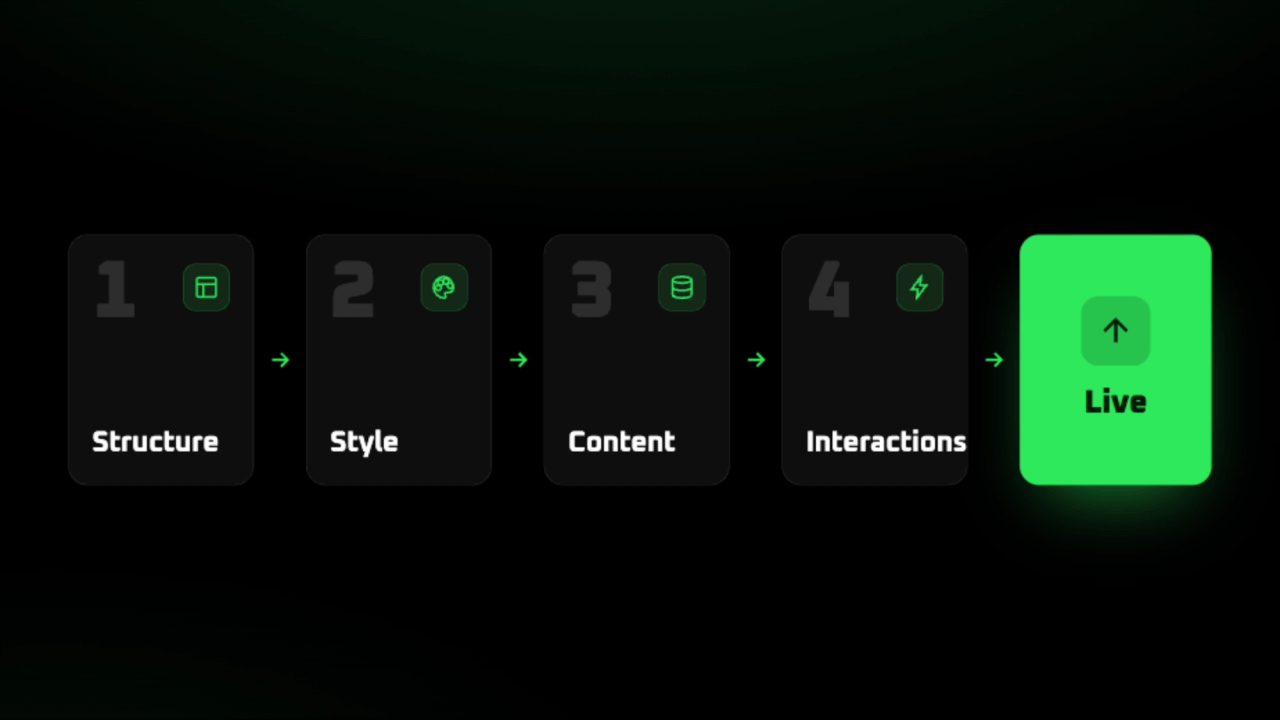
From blank page to published site: the journey in 5 steps
Designing a site in Webflow follows a clear path, from structure to launch. Every action you take on the canvas writes clean code behind the scenes. You work visually, never typing HTML/CSS. Here are the five steps of the journey.
1. Structure the page in the Designer. You drag and drop sections, containers, text, and images onto the canvas. Webflow relies on Flexbox and CSS Grid standards (the web tools that place and align elements) for precise layout control.
2. Style with classes. A class (a reusable style label) groups an appearance: font, color, spacing. You define it once. Every element that carries it updates together the moment you modify it.
3. Connect the CMS for dynamic content. The CMS works through Collections, for example your blog articles. A Collection page serves as a single template. Webflow generates a page for each article, filled with its own content.
4. Add interactions and animations. An animation is a movement effect (fade, slide, scale). An interaction is what triggers it (hover, click, scroll, page load). Everything is adjusted visually. Webflow offers an advanced animation system, built on the GSAP library, with a timeline for complex sequences.
5. Publish in one click. Webflow compiles everything into clean HTML, CSS, and JavaScript. It then distributes your site across its global network of servers for fast display. You connect your domain by adjusting its DNS settings. The SSL certificate activates automatically on paid plans.
| Expert insight |
|---|
| Order matters: structure first, style second. A well-built page before styling saves you from undoing classes later. Think of your classes as a reusable system from the start. That's what makes a Webflow site easy to evolve. Connect the CMS early if your site will grow (blog, portfolio, testimonials). A single template then manages dozens of pages without repeated work. |
Does Webflow generate "real" code?
Yes, and it's a strength often overlooked. Every click in the Designer writes code in real time. Webflow produces HTML, CSS and JavaScript, the three fundamental languages of the web. You design, the platform codes behind the scenes.
Webflow claims clean code that complies with standards (readable code that respects the web rules set by the W3C, the body that standardizes these technologies). Concretely, each style is attached to a reusable CSS class. We avoid inline styles (formatting code stuck on each element, heavy to maintain) typical of drag-and-drop builders.
The code produced is also semantic (tags have meaning: a title is marked as a title, a list as a list). It's better for SEO (your visibility on Google) and for accessibility. For a developer, this changes everything. They take the foundation without having to first clean it up entirely.
You're also not locked into the platform. Webflow allows source code export (downloading HTML, CSS, JavaScript and images in a .zip file), with no attribution required. You can then host it elsewhere or hand it over to your technical team. This function requires a paid Workspace plan (about $19 USD/month), not the free plan.
| ⚠️ Warning |
|---|
| Code export does NOT retrieve everything. Dynamic CMS content (Collections, the content management system that works like a database), user accounts and the e-commerce section are never included in the .zip. On an exported site, Collection lists display empty and pages linked to content show nothing. This content must be exported separately, in CSV format (a simple spreadsheet file). Keep this in mind before leaving the platform. Plan details: check the official pricing grid at webflow.com/pricing, as prices and plan names change regularly. |
| Site Element | Included in code export (.zip)? |
|---|---|
| HTML pages (structure and fixed content) | Yes |
| CSS (Webflow styles + Normalize.css file) | Yes |
| JavaScript for interactions and animations | Yes |
| Images from the media library | Yes |
| CMS content (Collections) | No (separate CSV export) |
| User accounts and e-commerce | No (separate CSV export) |
| Multilingual pages (localized content) | No |
What's next? Try Webflow or hand it over to an agency
Now that the mechanism is clear, two paths open up for you. You can learn the tool and build the site yourself in the Designer. It's doable for a simple project, provided you invest the time. To dive deeper into the subject before you start, see why choose Webflow and what Webflow is for.
The other path is to entrust the design to an agency or a Webflow professional. Day-to-day content stays on your side, while the technical structure is properly set up from the start. If you're still unsure, a Webflow agency can review your case with you, with no obligation. It's often a quick way to get a solid site.
Frequently asked questions about how Webflow works
You've grasped the Webflow mechanism, but a few practical points come up often. Here are direct answers to the most common questions from business leaders.
Each answer gets to the point, without detours. To explore a specific topic, follow the links to our dedicated articles.
| What you need to know |
|---|
| The free Starter plan is enough to discover the tool without paying. Day by day, content updates without a line of code. The Designer builds the site, the Editor updates the content. Code export carries the design, not the dynamic content (CMS, forms, ecommerce). |
Where to start with Webflow?
Open an account on the free Starter plan : it gives you full access to the design canvas, without a credit card. Then follow the "Webflow 101" introductory course on Webflow University, the official free learning platform, to build your foundation.
Do you need to know how to code to use Webflow?
On a daily basis, updating text, images and articles requires no code at all. Building a complete site from scratch, on the other hand, requires mastering the basics of the web. That's the subject of a separate article.
Can you export the code from a Webflow site?
Yes, on a paid Workspace plan. Webflow generates clean HTML, CSS and JavaScript files (the code that structures and styles the page). Keep in mind: the export includes the design, but not the dynamic content managed by the CMS. Forms or online sales will therefore stop working elsewhere.
What's the difference between Webflow's Designer and Editor?
The Designer is the design workshop : structure, layout, styles and animations, reserved for one person at a time. The Editor is the simplified interface that modifies content directly on the page, without touching the design, and can be used by multiple people.
What's the difference between a collection page and a collection list?
The collection page is the template that serves as a mold for each entry's page : one page per item. The collection list is a block that displays multiple entries in the same place, for example the latest articles on the homepage. A list shows up to 100 items at once ; beyond that, pagination takes over.
How much content can you manage in the CMS?
Webflow's Premium plan (from the May 2026 pricing reform) includes 20,000 CMS items and 40 collections. That's more than enough for a small business's blog or portfolio. The old numbers from the CMS and Business plans (2,000 or 10,000 items) are still circulating, but they've been outdated since the merger into a single plan.
Do you need to buy separate hosting for a Webflow site?
No.Hosting is included in the paid site plan You don't rent or configure a separate server: your pages are served from Webflow's infrastructure (AWS + CDN). The free Starter plan only gives access to a .webflow.io subdomain, without a custom domain.
Do my changes appear online right away?
No, and that's by design. You work in the Designer and preview on the staging address at yoursite.webflow.io.As long as you don't click Publish, visitors see the old version. You can test safely before pushing to production.
Want a well-built Webflow site?
At Vekteur, we build custom Webflow sites, solid from the first line. You then manage the content independently, without touching the code.